                     ██
                     ██
                     ██
 ██░████    ░████▒   ██  ▓██▒   ░████░
 ███████▓  ░██████▒  ██ ▓██▒   ░██████░
 ███  ▒██  ██▒  ▒██  ██▒██▒    ███  ███
 ██    ██  ████████  ████▓     ██░  ░██
 ██    ██  ████████  █████     ██    ██
 ██    ██  ██        ██░███    ██░  ░██
 ██    ██  ███░  ▒█  ██  ██▒   ███  ███
 ██    ██  ░███████  ██  ▒██   ░██████░
 ██    ██   ░█████▒  ██   ███   ░████░

             v0.3 manual
            February 2026
# Neko
`neko` is a self-hosted, single user rss reader focused on simplicity and efficiency.
*note: the cat ears are in your mind*
*note: as of Feb 2026, this project is now rewritten by AI as an experiment, which is actually probably better than when I wrote it myself but also still dangerous! so if you want the old original version git checkout back to 39ed5fcfe9327ab4eb81c4863d9e6353f08f6c07 from a few years ago*
## Features
* limited features (#1 feature)
* keyboard shortcuts
* **j** - next item
* **k** - previous item
* that's all you should ever need, really
* automatically marks items read in an infinite stream of never-ending content (until you run out of content and it ends)
* full text search
* scrapes full text of pages on demand
* collapsible sidebar sections for Feeds and Tags
* extremely simple and boring tech stack: backend: go, data: sqlite, frontend: vanilla javascript
## Screenshots
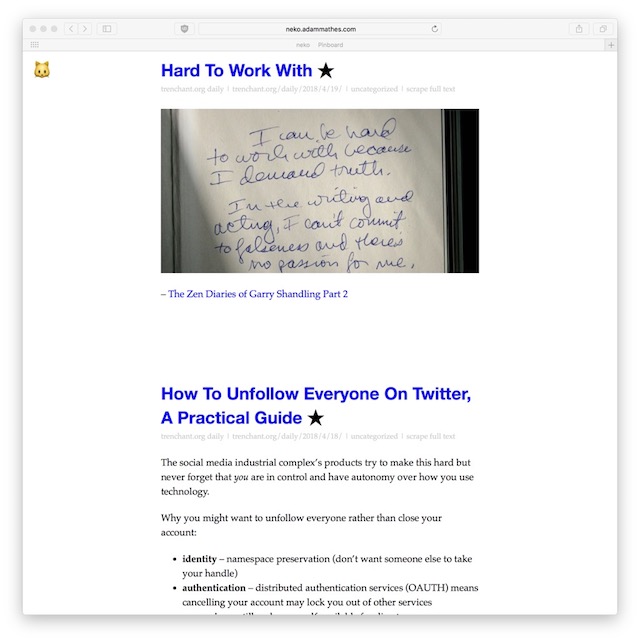
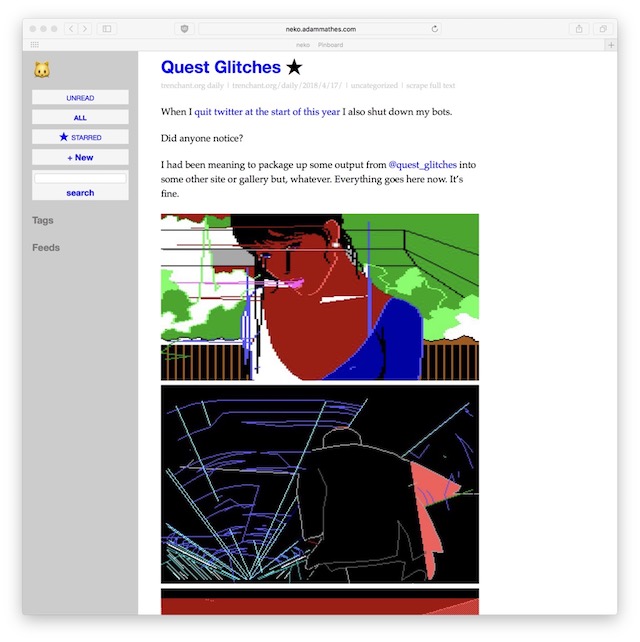
# Installation
## Requirements
It should just work with a modern `go` installation. If not, file a bug!
## Via Go
The easiest way to install is via `go install`
```bash
go install adammathes.com/neko/cmd/neko@latest
```
You can also build from source if or use a docker-compose.yaml file if you're into that sort of thing.
# Usage
## Web Interface
You can do most of what you need to do with `neko` from the web interface, which is what `neko` does by default.
$ neko
`neko` web interface is available by default at `127.0.0.1:4994`.
Neko currently bundles three versions of the web interface for different preferences:
* **v3 (Vanilla javascripit)**: Default at / and at `/v3/`. A high-performance, zero-dependency version built for speed and simplicity.
* **v1 (Legacy Backbone)**: Available at `/v1/`. The original classic interface I wrote before AI. It uses backbone and is included for historical record, I guess.
You can specify a different port using the `--http` option.
$ neko --http=9001
If you are hosting on a publicly available server instead of a personal computer, you can protect the interface with a password flag --
$ neko --password=rssisveryimportant
## Add Feed
You can add feeds directly from the command line for convenience --
$ neko --add=http://trenchant.org/rss.xml
## Crawl Feeds
By default, when running the web server (`neko`), a background crawler runs every **60 minutes** to fetch new items.
You can customize this interval using the `--minutes` flag:
$ neko --minutes=30 # Crawl every 30 minutes
To **disable** background crawling, set minutes to 0:
$ neko --minutes=0 # Run web server only, no background crawling
### Manual Update
You can manually trigger a feed update from the command line without starting the server:
$ neko --update
This will fetch, download, parse, and store in the database your feeds once and then exit.
## Export
Export de facto RSS feed standard OPML from the command line with --
$ neko --export=opml
Change `opml` to `text` for a simple list of feed URLs, or `json` for JSON formatted output.
Export is also available in the web interface.
Import of OPML and other things is available via the web interface.
## Purge Items
You can delete old items to free up database space. By default, only **read** items are deleted.
$ neko --purge=30 # Delete read items older than 30 days
To include **unread** items in the purge:
$ neko --purge=30 --purge-unread
**Note:** Starred items are never deleted.
# Configuration
Everything can configured with a few command line flags. You shouldn't need to change the defaults most of the time.
You can also set options using a configuration file [`yaml`](http://yaml.org), described at the end of this README (but you probably don't need to, other than setting a password.)
## Configuration File
For convenience, you can specify options in a configuration file.
$ neko -c /etc/neko.conf
A subset of the command line options are supported in the configuration file, with the same semantics --
* database
* http
* imageproxy
* minutes
* password
* secure_cookies
For example --
```
database: /var/db/neko.db
http: 9001
imageproxy: true
minutes: 90
password: VeryLongRandomStringBecauseSecurityIsFun
# secure_cookies: true # Set to true when using HTTPS in production
```
## Storage
By default `neko` will create the file `neko.db` in the current directory for storage.
You can override the location of this database file with the `--database` command line option or `-d` short option.
$ neko --database=/var/db/neko.db --add=http://trenchant.org/rss.xml
which is equivalent to --
$ neko -d /var/db/neko.db --add=http://trenchant.org/rss.xml
For expert users -- this is a [SQLite](https://sqlite.org/) database and can be manipulated with standard sqlite commands --
$ sqlite3 neko.db .schema
-- will print out the database schema.
# All Command Line Options
View all command line options with `-h` or `--help`
```bash
$ neko -h
```
```
Usage of neko:
-a, --add http://example.com/rss.xml
add the feed at URL http://example.com/rss.xml
-c, --config string
read configuration from file
-d, --database string
sqlite database file
-x, --export string
export feed. format required: text, json or opml
-h, --help
print usage information
-s, --http int
HTTP port to serve on
-i, --imageproxy
rewrite and proxy all image requests for privacy (experimental)
-m, --minutes int
minutes between crawling feeds (default -1, uses 60 if unset)
-p, --password string
password to access web interface
--purge int
purge read items older than N days
--purge-unread
when purging, also include unread items
--secure-cookies
set Secure flag on cookies (requires HTTPS)
-u, --update
fetch feeds and store new items
-v, --verbose
verbose output
```
These are POSIX style flags so --
$ neko --minutes=120
is equivalent to
$ neko -m 120
# Building
## Docker
You can build and run neko using using Docker and Docker Compose from the included Dockerfile.
Clone this repo then:
1. **Build and Start**:
```bash
docker-compose up -d
```
2. **Access**:
The web interface will be available at `http://localhost:8080`.
Data is persisted in a Docker volume named `neko-data` (mapping to `/app/data/neko.db` inside the container).
## Build from Source
Neko is designed for easy building. Static assets for the frontends are pre-built and checked into the repository in the `web/dist/` directory, so a standard Go build is all that's required for most users.
1. **Standard Build**:
```bash
# Uses existing assets in web/dist/ and web/static/ via Go embed
make build
```
A `neko` binary will be created in the root directory.
2. **Full Rebuild (including UI)**:
If you modify the React or Vanilla frontends, you'll need to rebuild them. This requires Node.js.
```bash
# Rebuilds everything: cleans, builds UIs, and builds binary
make all
```
3. **Updating UI Assets Only**:
If you want to update the frontends without a full clean:
```bash
make ui # Rebuild React frontend
make build # Build final binary
```
# History
## Early 2017
I decided I didn't like the [original version of this that was python and mongo](https://github.com/adammathes/neko_v1) so rewrote it. I wanted to learn some Go.
The Javascript frontend stayed still the same, I kept saying I will rewrite that too since it's old backbone.js code but it still seems to mostly work. It's not very pretty though.
## July 2018 -- v0.2
Significant changes to simplify setup, configuration, usage. The goal was typing `neko` should be all you need to do to get started and use the software.
* removed MySQL requirement (eliminating a ton of configuration and complexity)
* added SQLite support (easier!)
* auto-initialization of database file with embedded schema
* removed json-formatted config file -- all options are command line options
* `neko` runs web server by default
* `neko` server crawls feeds regularly rather than requiring cron
## February 2026 -- v.03 -- Vibe-code Modernization
*WELCOME TO THE GEMINI ERA*
The project underwent a significant modernization phase with the help of Google Antigravity, Gemini, and Claude:
* **Architecture**: Refactored backend into a clean REST API.
* **Frontend**: Completely rewrote the legacy Backbone.js frontend in React/Vite as a modern Single Page Application (SPA).
* **Frontend**: Realized that was a huge mistake. React was a mistake, I think, for our industry. Rewrote the frontend again in plan vanilla optimized Javascript. Because AI wrote it, nobody complained!
* **Performance**: Implemented robust Gzip compression and optimized asset delivery.
* **Stability**: Added a comprehensive test suite with high coverage across both backend and frontend.
* **Modern Standards**: Fully adopted Go modules and modern JavaScript build tooling.
# Development and Testing
## Local Development Setup
To contribute to Neko or run the full test suite locally, you will need the following tools:
- **Go (1.24+)**: For backend development and running tests.
- **Node.js (20+) & npm**: For frontend development and building UI assets.
- **Docker**: For containerized development and verifying the Docker build.
- **SQLite3**: For direct database manipulation and debugging.
- **golangci-lint**: Required for `make lint` to run static analysis.
### Quick Start for Developers
```bash
make all # Clean, rebuild UIs, and build binary
make test # Run all backend and frontend tests
make check # Run linting and tests
```
## Development with Containers
If you don't have Go or Node installed locally, or prefer an isolated environment, you can use the provided `docker-compose.dev.yaml`.
1. **Start the development environment**:
```bash
docker compose -f docker-compose.dev.yaml up -d --build
```
2. **Run tests inside the container**:
```bash
docker compose -f docker-compose.dev.yaml exec neko-dev bash -c "go test ./... && cd frontend-vanilla && npm install && npm test"
```
3. **Get an interactive shell**:
```bash
docker compose -f docker-compose.dev.yaml exec neko-dev bash
```
4. **Stop the environment**:
```bash
docker compose -f docker-compose.dev.yaml down
```
